How to Monitor TED for Relevant Tenders (Step-by-Step)
TED (Tenders Electronic Daily) publishes over 2,000 procurement notices every weekday. The good news is that the portal is free to use and requires no account for basic searching. The challenge is that its interface was designed for procurement officers, not suppliers — and setting up a reliable monitoring system takes more steps than most guides admit. This article walks through the complete process, from your first search to a repeatable daily routine.
Effective TED monitoring requires two things prepared in advance: your CPV code list (the codes that classify your services) and a clear sense of which countries and contract value ranges are realistic for your firm. Without these, you will either see too much irrelevant noise or miss tenders you qualify for. If you haven't done this yet, read our guide on finding your CPV codes first.
The Three Ways to Search TED
TED offers three search interfaces at ted.europa.eu, each designed for different levels of complexity. Understanding which to use — and when — saves a significant amount of time.
The guide below focuses on Advanced Search for setting up monitoring, with a section on Expert Search for those who want more precision. Quick Search is useful for verifying a specific notice but is not a monitoring tool.

Step 1 — Set Up Your Advanced Search
Navigate to ted.europa.eu/en/advanced-search. You will see a form divided into several collapsible filter groups. Most are collapsed by default — you need to expand them to use them.
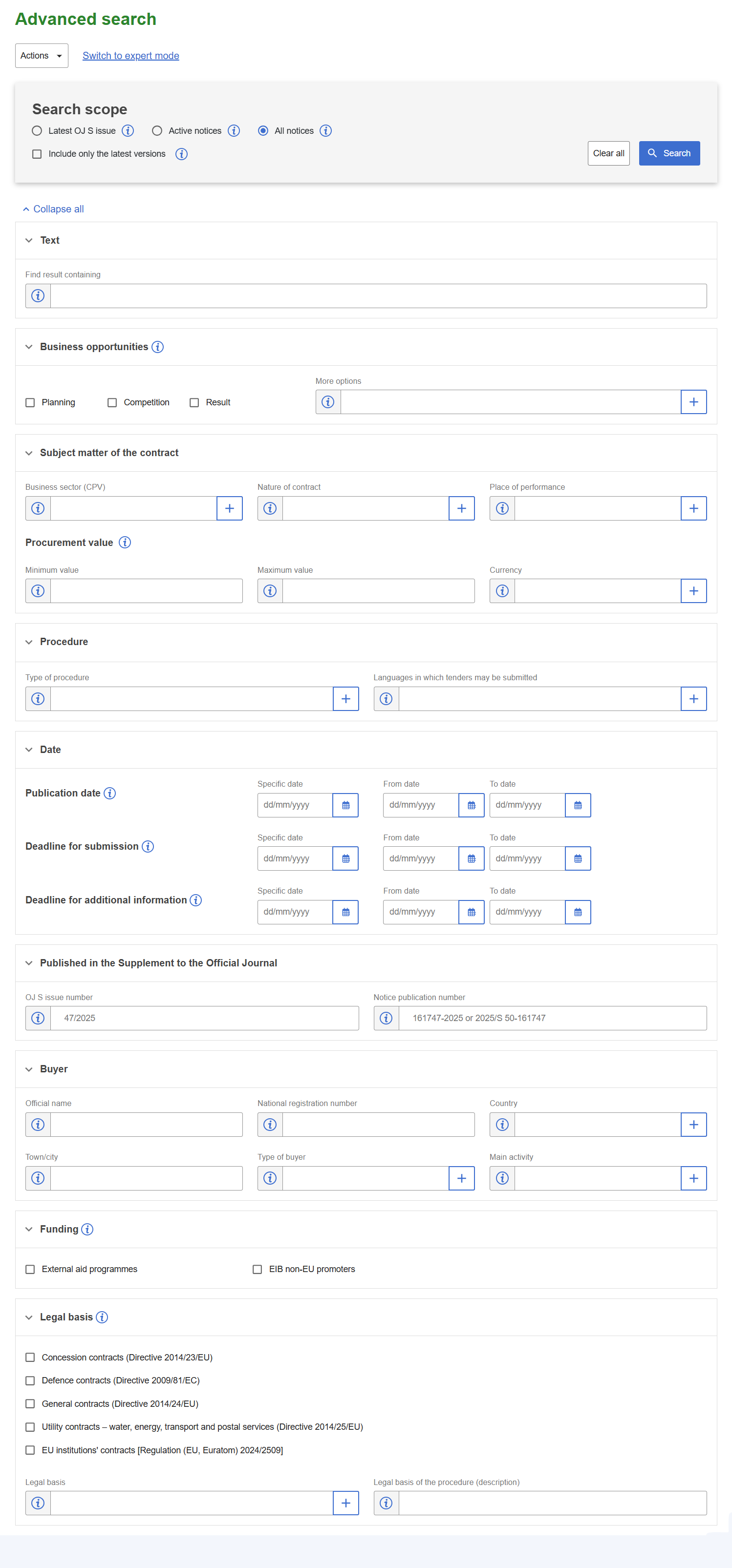
The Advanced Search form has 8 collapsible sections with over 30 individual fields. There is no guidance on which filters to combine for supplier monitoring, no preview of how many results your filters will return before you run the search, and no obvious way to tell whether the CPV filter is matching at the division level or the specific code level. Most first-time users either under-filter (thousands of irrelevant results) or over-filter (zero results).
Expand the Business Opportunities section. For supplier monitoring, select Contract Notice (CN) — these are active procurement competitions you can bid on. Uncheck Prior Information Notices (PIN) and Contract Award Notices (CAN) unless you specifically want those. Award notices are useful for competitor intelligence but are not opportunities to bid on.
Expand the Subject Matter section. In the CPV field, type your first CPV code or keyword. TED will suggest matching codes as you type. Add each code from your prepared list — you can add multiple codes, and TED will return notices matching any of them (OR logic, not AND).
If you're unsure which CPV codes to use, use the interactive CPV search tool in our guide before returning here.
In the same Subject Matter section, expand the Place of performance filter. Select the countries where you can realistically deliver work. For multi-country monitoring, select all relevant countries — TED allows multiple selections. If you serve all of the EU, leave this blank rather than selecting all 27 individually.
The Buyer country filter (in the Buyer Info section) is different — it filters by where the contracting authority is located, not where the work is performed. For most supplier monitoring, Place of performance is the more useful filter.
Still in Subject Matter, expand the Estimated total value filter. Set a minimum value that reflects the smallest contract your firm could realistically deliver, and a maximum if there are capacity constraints. Filtering out very small contracts significantly reduces noise without missing meaningful opportunities. A typical SMB range might be €50,000–€5,000,000.
Expand the Dates section. Set the Deadline for receipt of tenders to a date at least 14 days in the future — this filters out tenders with imminent deadlines you couldn't realistically respond to. Leave the upper bound blank to include all future deadlines. For monitoring purposes, you will run this search repeatedly, so the filter is less critical than for a one-off lookup.
Click Search. Review the first page of results. If you see thousands of results, your filters are too broad — add more CPV specificity or tighten your value range. If you see zero results, your filters are too narrow — remove the value filter first, then try broader CPV codes.
A well-configured search for a focused SMB typically returns 20–100 results per week across all active notices, falling to 5–15 new notices per day once you are only looking at recently published tenders.
RSS Feeds — The Quickest Route to Your Feed Reader
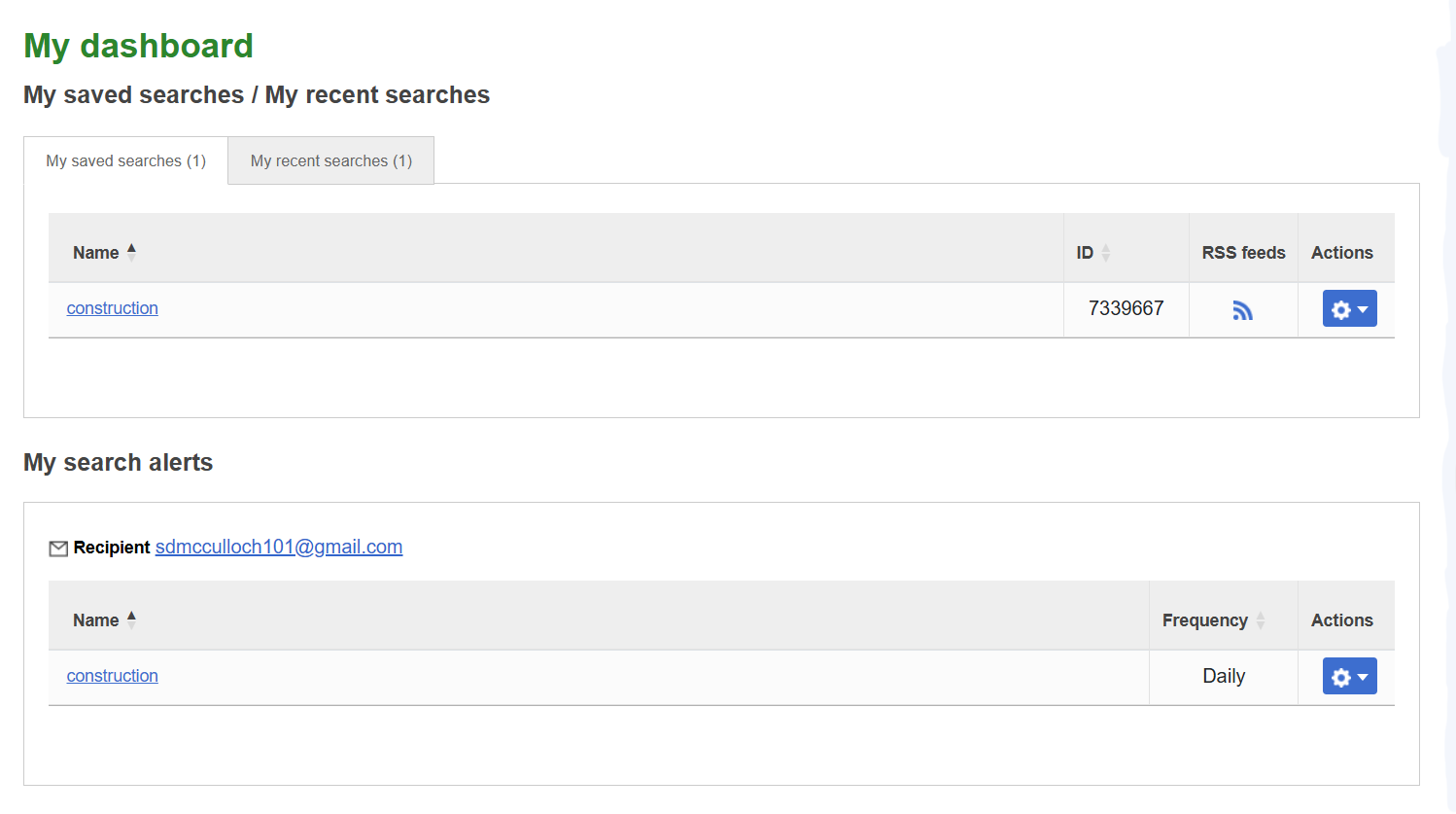
Every TED saved search has a corresponding RSS feed, accessible directly from the My dashboard page via the RSS icon next to each saved search. This is one of the most underused features of the portal. Once added to a feed reader (Feedly, Inoreader, or any RSS client), new matching notices appear automatically without you needing to log in or check the TED site.
After saving a search, go to My TED → My dashboard. In the "My saved searches" section, each search has a blue RSS icon in the RSS feeds column. Click it to open the feed URL, then copy the URL from your browser address bar.
TED RSS feeds deliver notice titles and brief metadata — not the full notice text. You still need to visit TED to read the full procurement documents. RSS is best used as a triage layer: scan titles in your feed reader, click through to the notices worth reading in full.
Step 3 — Set Up Email Alerts with a MyTED Account
For most suppliers, email alerts are more practical than RSS. TED allows registered users to save up to 5 search profiles and receive daily email notifications when new notices match those searches. This is free and requires only a TED account — no subscription needed.
Go to ted.europa.eu/en/sign-up. Registration requires an email address and password — no organisation details are needed. Confirm your email address when the verification message arrives. The process takes about two minutes.
Log in to your new account, then run the Advanced Search you configured in Step 1. Being logged in activates the Save Search functionality.
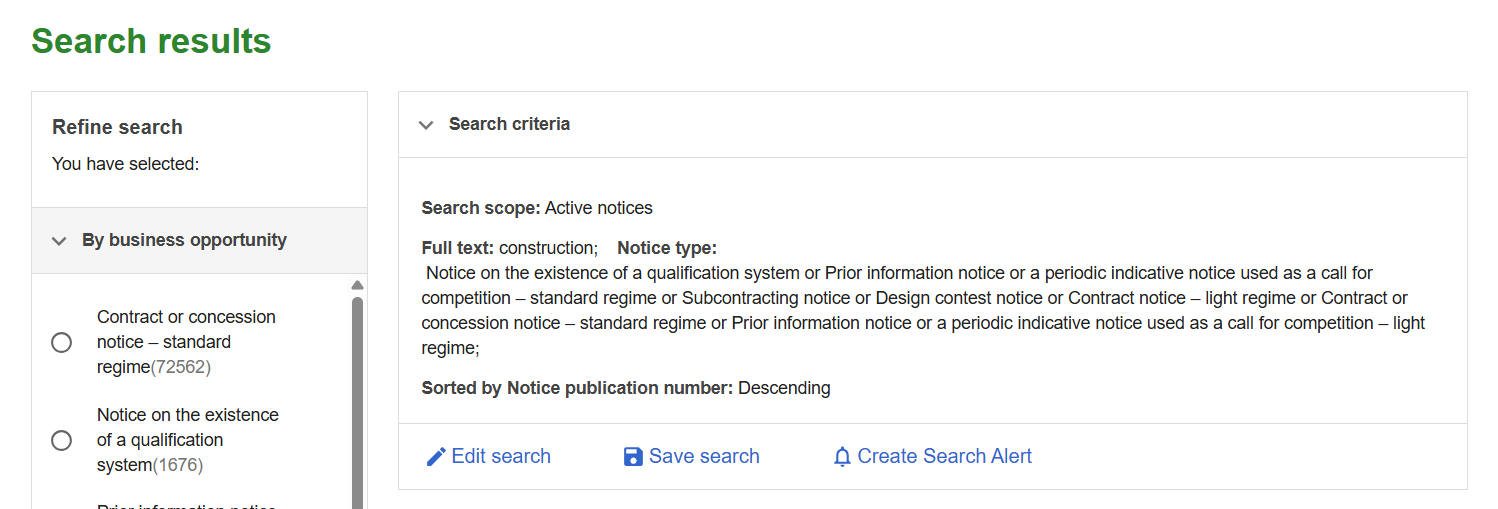
On the results page, you will see three action links below the search criteria summary: Edit search, Save search, and Create Search Alert. These are two separate steps — you must save the search first, then set up the alert.
Click Save search and give it a descriptive name (e.g. "IT services — Germany and Netherlands"). Then click Create Search Alert and choose your alert frequency — Daily is recommended for active monitoring. The alert will be sent to the email address on your TED account.
Go to your account area (top-right menu → My TED → My dashboard). You will see two sections: My saved searches (with an RSS feed icon per search) and My search alerts (showing the recipient email and alert frequency). Confirm your alert appears in the second section with "Daily" frequency. TED sends alert emails on days when new matching notices have been published — if there are no new matches, no email is sent.
The RSS icon next to each saved search gives you the feed URL directly from the dashboard — no need to return to the search results page to find it.
Step 4 — Expert Search for Advanced Users
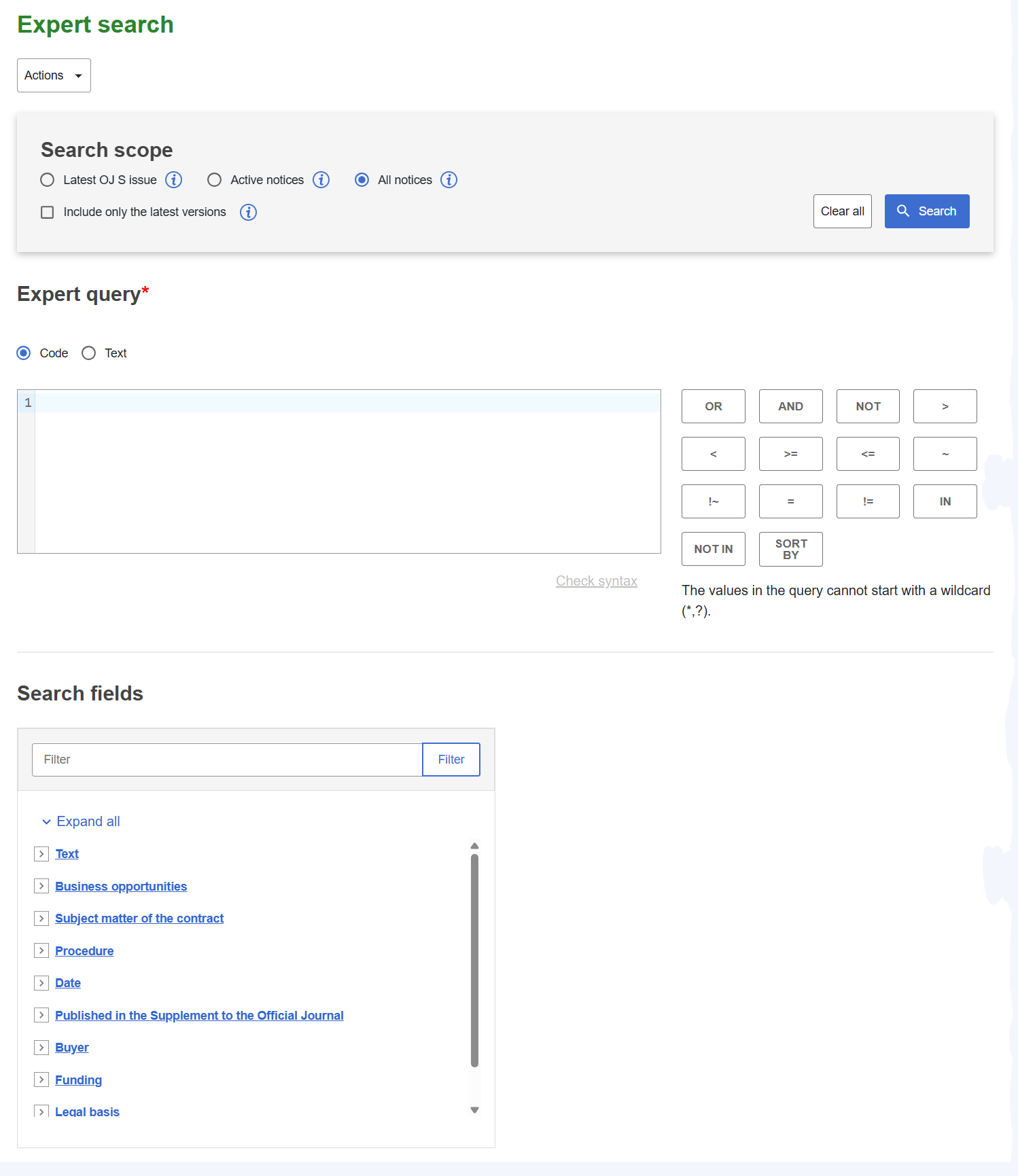
Expert Search at ted.europa.eu/en/expert-search accepts a raw query language that gives significantly more control than Advanced Search. It is worth learning if you need to combine filters in ways the structured form doesn't support — for example, filtering by multiple CPV ranges simultaneously, or combining CPV and keyword conditions.
The interface is less intimidating than it first appears. To the right of the query box, TED provides a panel of clickable operator buttons (OR, AND, NOT, >, <, IN, etc.) that insert syntax directly into your query. A Check syntax link validates your query before running it. Below the query box, an expandable Search fields panel lists every available field code grouped by category — click any field to see its syntax and insert it into your query.
Some useful Expert Search query patterns:
| Goal | Query example |
|---|---|
| IT tenders in Germany, open now | classification-cpv=72000000 AND buyer-country=DEU AND deadline-receipt-request>=20260601 |
| Multiple CPV codes, any country | classification-cpv IN (72000000, 79400000, 73200000) |
| High-value construction, France or Belgium | classification-cpv=45000000 AND buyer-country IN (FRA, BEL) AND total-value>=500000 |
| Keyword in title, specific procedure | title~"data analytics" AND procedure-type=open |
| Notices published in last 7 days | publication-date>=20260526 AND classification-cpv=80000000 |
Expert Search queries can also be saved and used as email alert sources, following the same process as Advanced Search saves. The saved query URL can be bookmarked and re-run at any time.
The Limitations You Will Hit
TED's built-in monitoring is functional but has genuine constraints that become apparent after a few weeks of use. These are not bugs — they are inherent to the design of a system built primarily for compliance and transparency, not for supplier business development.
| Limitation | Impact | Workaround |
|---|---|---|
| No search limit shown in practice | TED does not appear to enforce a hard cap on saved searches — you can create as many as needed | No workaround needed; create separate searches per sector and country freely |
| TED only — no national portals | All below-threshold contracts (Germany, France, Spain, Poland, Italy etc.) are invisible | Set up separate accounts on each national portal, or use a third-party aggregator |
| No match scoring or ranking | Results are a flat list — no indication of which notices are most relevant | Manual triage required daily; no automation possible |
| No summary or translation | Notices often arrive in the buyer's language only | Machine translation (DeepL or similar) as a secondary step |
| No deadline urgency indicators | A 35-day and a 7-day deadline look identical in the results list | Sort by deadline manually; set calendar reminders for each relevant tender |
| No bid pipeline management | No way to track which tenders you're pursuing, in progress, or submitted | External spreadsheet or CRM required |
Building a Daily Monitoring Routine
The mechanics of TED monitoring are straightforward once set up. The harder part is sustaining the habit. A consistent 20-minute daily routine is more valuable than an intensive session once a week — tenders discovered late rarely result in competitive bids.
When You Find a Relevant Tender
Finding the notice is only the start. The steps that follow determine whether you have a genuine bid opportunity or just an interesting PDF.
- Download the full procurement documents. The TED notice is a summary. The actual specifications, award criteria, and eligibility requirements are in the attached documents — typically a PDF or ZIP. These must be downloaded from the submission portal linked in the notice.
- Check the deadline immediately. Calculate the exact number of days remaining. EU open procedures require a minimum of 35 days from publication to submission deadline — but notices can appear later than their publication date. Do not assume you have more time than the calendar shows.
- Check the eligibility criteria. Section III of eForms notices lists selection criteria: minimum turnover, professional liability insurance requirements, years of relevant experience, and mandatory certifications. If you don't meet any hard requirement, withdraw from consideration early rather than investing bid writing time.
- Read the award criteria. Section II.2.5 specifies how bids will be evaluated — typically a weighted combination of price and quality. Understanding the weighting tells you where to invest bid writing effort. A 70% quality weighting means price is almost irrelevant; a 60% price weighting means your cost model matters more than your methodology narrative.
- Register your interest if required. Some procedures require formal registration on the buyer's e-tendering portal before you can access documents or submit. Do this on day one, not day thirty.
- Log it in your bid pipeline. Even a basic spreadsheet (tender ID, title, deadline, value, status, owner) prevents tenders from being forgotten mid-process.
Don't Forget National Portals
TED only covers contracts above EU publication thresholds. Depending on your sector and target markets, a significant proportion of relevant contracts will never appear on TED — they are published exclusively on national portals at lower values. If you operate in Germany, the Netherlands, France, Spain, or Poland, monitoring TED alone means missing a large slice of the market.
| Country | National portal | URL | Approx. notices/day |
|---|---|---|---|
| Germany | BKMS / DTVP | bund.de/IMPORTE/Bekanntmachungen/ | ~300 |
| Netherlands | TenderNed | tenderned.nl | ~100 |
| France | BOAMP | boamp.fr | ~200 |
| Spain | PLACSP | contrataciondelestado.es | ~800 |
| Poland | BZP | ezamowienia.gov.pl | ~300 |
| Italy | ANAC | anticorruzione.it | Monthly batches |
| United Kingdom | Contracts Finder | contractsfinder.service.gov.uk | ~100 |
Each portal has its own registration process, search interface, and alert mechanism. Setting up monitoring across 4–5 portals is a half-day task, and maintaining it — each portal updates its interface periodically — adds ongoing overhead.
If this feels like too much to maintain manually — there's a simpler way
TedScout monitors TED plus 8 national portals simultaneously, applies your company profile to every notice, and sends one daily digest with pre-ranked results. The setup that takes 45 minutes across TED and 5 national portals takes about 5 minutes in TedScout. There's a free tier with no credit card required.
Summary: What You Need for a Working TED Monitoring Setup
Prepared: CPV code list (10–20 codes across your service areas) · target country list · realistic value range
TED account: Registered and email verified at ted.europa.eu
Saved searches: Up to 5 searches configured with CPV + country + value filters, email alerts set to Daily
RSS (optional): Feed URLs added to Feedly or Inoreader for real-time scanning
National portals (if relevant): Separate accounts on BKMS, TenderNed, BOAMP, PLACSP, or BZP as needed
Routine: 20 minutes each morning to triage new alerts and log relevant tenders
Pipeline: Spreadsheet or CRM tracking tender ID, deadline, value, status, and owner